Thursday, 16 January 2014

Administration: HP-UX commands to verify hard disk status after replacement

A little bit sidetrack from SAP topic, some of the commonly used HP-UX commands to verify on the hard disk status.

To obtain the relevant hard disk information

1) To show all the disks that currently connected to the server
    Command: ioscan –fnkC disk

2) To show the status of the hard disk
    Command: ioscan –fnkd ciss (to get the driver name)

    Command: sautil /dev/ciss0 (Utility to show the disk property)

Parameter meaning:
f=give full listing
 n=show device file names
k=show kernel structure; don’t scan hardware
C=show hardware in specified class

d=show hardware controlled by specified driver

Example of the sautil (Utility): 

Assumption: the server is running with 2 hard disks on RAID 1

1) One of the hard disk encounter error/failure

2) The server is currently running with one hard disk and experiencing failure on the other

3) Replication/mirroring is in progress (automatically started once a new hard disks been replace/hot swap)

4) Mirroring complete


How to install SAP license from OS level

You would like to install the SAP license but with limited permission on SAP GUI to execute TCODE: SLICENSE. The alternative solution is to install through OS level with the assumption of sufficient OS level access.

A) Example of license renewal required

1) Sample warning message of license expired

B) Steps to renew the license from SAP marketplace

1) Ensure the installation number for the license renewal:  System -> Status

2) Login to SAP marketplace: Keys & Requests -> License Keys -> Click on the relevant installation
    number

3) Click on the "Change details" icon for system that required license renewal.

4) Click "Continue"

5) Select the Certificate that required renewal and click "Change selected entry".

6) Click "Save"

7) Once the "Valid Until" shown the new date, click "Continue".

8) Enter the email address to receive the certificate and click "Submit".

9) Click "OK".

10) Request is being process ...

11) Wait for the email from SAP containing the new certificate details

12) Sample content of the new certificate.


C) Steps to perform the renewal at OS level

1) Example of insufficient permission to perform license renewal from SAP GUI

2) By using WINSCP or FTP, transfer the certificate received into the "prdadm" folder

3) File transfer successfully.

4) With PUTTY, login to OS level with root permission and perform the steps below:
    With root permission:
    - cd /home/prdadm
    - chmod 777 CERTICATE_FILE (change mode of the file)
    - chown prdadm:sapsys CERTICATE_FILE (change owner for the file)
    - su - prdadm

5) Execute the command highlighted below with prdadm
    With prdadm permission
    - cdpro
    - ls (to get the correct DVEBMGS name)
    - pwd (to get the correct path name)
    - ls (to get the copied certificate filename)
    - saplikey pf=path name + "/" + DVEBMGS name -install certificate filename

6) Once license installed successfully, the warning message no longer appear


D) Troubleshooting

1) Error: Insufficient permission when performing the license installation.


     Solution: Ensure change mode and change owner be perform prior to the SAP license installation

Saturday, 21 December 2013

Introduction and how to configure SAP Web GUI

To eliminate the extensive support of SAP GUI maintenance and upgrade on user PCs, the SAP Web GUI would provide an alternative solution to avoid all the support hassle and attractive benefit of zero installation.

A) Introduction on the SAP GUI family:

1) Web / HTML GUI: 
Pro: 
- Suitable for users who work with SAP transactions but don't require the performance of a native GUI
- Runs within standard browsers on Windows, Linux, MacOSX, iPad or Android browsers.
Cons: 
- Not getting the performance of an natively running software
- User may encounter usability limitations that caused by the browser framework
- Requires ITS in your SAP landscape to render pages

2) Windows / Java GUI: 
Pro: 
- native high performance
Cons:
- Requires local installation of the solution.
- Requires Java Plug-In on the client side (Java GUI)
- Have to worry about the software installations, upgrades, etc

B) Steps to setup the SAP WEB GUI

1) Verify the ICM configuration parameters. Execute TCODE: SMICM

2) Click "Goto" -> "Parameters" -> "Display"

3) Ensure the parameter: icm/server_port_0 = HTTP,PORT=<Desired port ex:8000>, ........

4)  Ensure the parameter: icm/host_name_full = <Full Qualified Domain Name/FQN>

4) Execute TCODE: SICF, click the "execute" button

5) Select the following node and active the services:
- /default_host/sap/bc/gui/sap/its/webgui
- /default_host/sap/public/bc/ur
- /default_host/sap/public/bc/its/mimes

Right click the selected node and click "Activate Service"

6) Click "Yes"

7) Execute TCODE: SIAC_PUBLISH_ALL_INTERNAL (wait few minutes to activate the publishing services)

 8) The progress will be shown in the status bar

9) Once the progress complete, a information screen will be shown.

10) Login with one of the following URL from the web browser
- http://<IP>:8000/sap/bc/gui/sap/its/webgui
- http://<FQN>:8000/sap/bc/gui/sap/its/webgui


 11) The login splash screen
 12) The SAP Web GUI main menu

13) Sample login screen with iPad


C) Troubleshoot:

1) Problem: The required icm parameters not found
    Solution: Execute TCODE: RZ10 to add the parameter to the profile 


2) Problem: How to check the FQN 
    Solution: View the "C:\Windows\System32\Drivers\etc\hosts" file 
                  (depends on windows configuration, some might not be available and could be added manually)


3) Problem: Error "Session not found" when executing TCODE in SAP Web GUI after login


Solution: Execute TCODE: SICF_SESSIONS and select the client to be access by Web GUI

Double click the state to activate it and retry the login again.

4) Problem: How to ensure the Web login connection details
    Solution: By using the sapmmc (windows), select the connections icon under the ICM for more details


D) Conclusion 
That all for the configuration and in the end, it's all depends on the environment and on the type of users whether to use pure native GUI or Web GUI or even mixture of it.

Tuesday, 3 December 2013

Forcing a transport between system with different patch level

Scenario: TR to be transport between system with different software version. Ex: DEV server been patch with latest SP while QAS server still pending for upgrade and running on lower SP.

Steps to force the TR:

1) Example: DEV with higher software version compare to QAS

2) Transport the TR with STMS

3) Click "Yes" button to start the TR 

4) Error will occur due to software version conflict

5) Click the "Question Mark" for further details

6) Re-run the transport again. Click "Yes" button


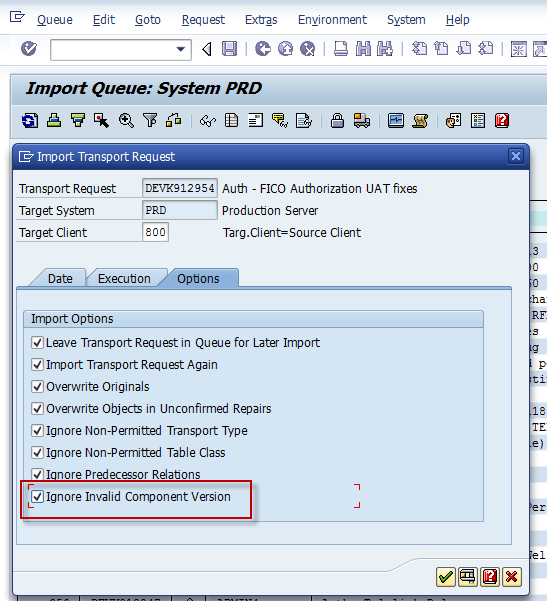
7) Click the "Options" tab and select the option: "Ignore Invalid Component Version". Probably you might need to select the rest of the options as well.
 

8) Click the "Yes" button

9) The TR is running

10) The TR complete with the status showing "Does not match component version"

11) Review the TR import log for further details

12) The TR successful transport between system

13) Don't forget to check the configurations / changes / roles / ABAP program etc whether it's been transported successfully into the target system.